Cloud Storage Drive Backup app
- 3.9
- Rating
- 500.00K
- Installs
- Free
- Price

 Analysis by App-foxy
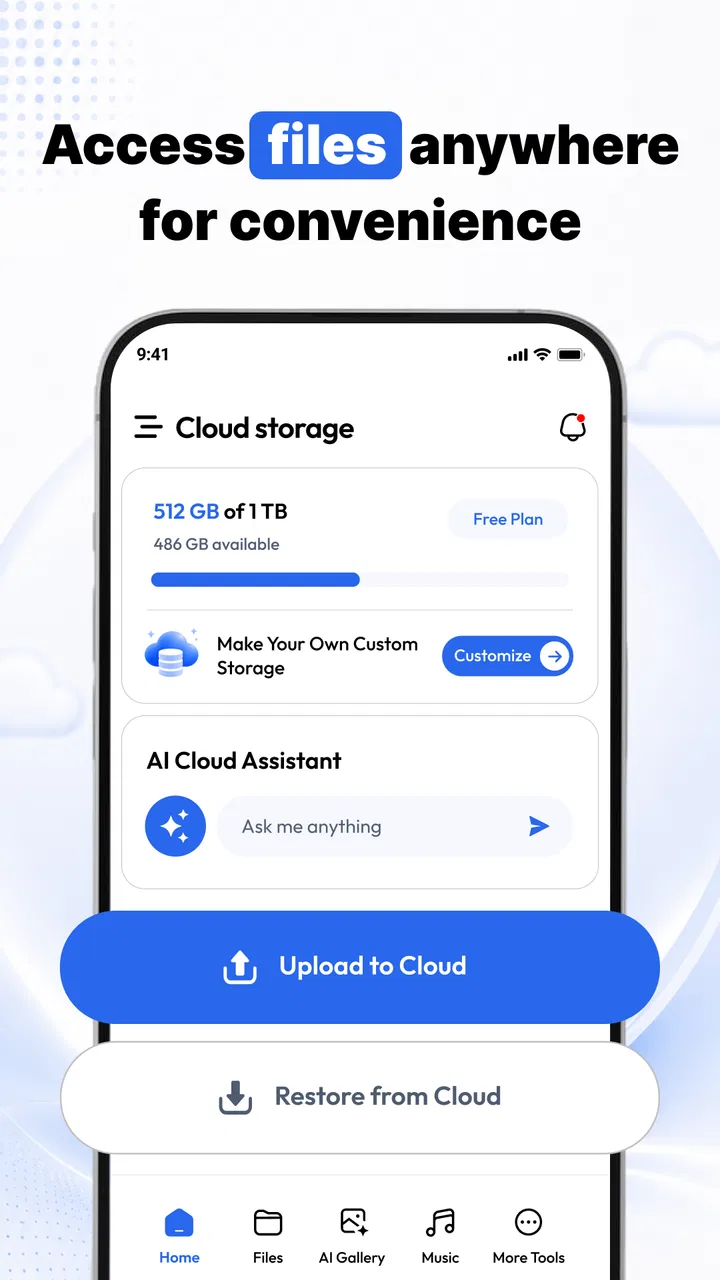
Cloud Storage Drive Backup is the kind of Tools app I would consider when my phone has become the accidental home for too many photos, videos, and contacts. Its purpose is straightforward: it gives me a place to back up personal files to cloud storage, keep them in a secure drive, and restore them when needed. That sounds simple, but the real experience depends heavily on the quality of the connection available when I use it.
In my testing mindset, this is not an app I would judge only by how quickly it opens. Its value appears during transitions: changing phones, freeing local space, protecting memories before a repair, or trying to recover something after an unexpected problem. The developer, MINDBYTE STUDIOS, presents it as a free app for everyday users, although optional purchases range from $9.99 to $179.99 per item. That makes the first step easy, but it also means I would pay close attention to what storage or advanced use I actually need before spending anything.
How Cloud Storage Drive Backup feels when the network is part of the workflow
When I use cloud backup, I think of the network as part of the handoff rather than a background detail: it affects when I start, what I prioritize, and how I confirm the result. I’d plan around a dependable connection and treat a completed transfer as something to verify before moving on. The next section looks at how those choices shape a backup away from home.
You May Also Like

 Blood Strike: 2.5 Anniversary
Blood Strike’s Loadouts Turn Every Drop Into a Tactical Gamble
A close look at Blood Strike’s custom loadouts: how fast access to signature weapons reshapes its battle royale rhythm, rewards preparation, and narrows the gap between fights.

 Pandora - Music & Podcasts
Pandora’s Music Is Easy to Start, but Harder to Recover
Pandora’s strength is its low-effort path from a seed to a station. Its weak spot is how much confidence it asks you to place in connection, setup, and quiet recovery.

 8 Ball Pool
 Is Built on Rivalries, Rematches, and Routine
A close look at the rivalries, rematches, shared routines, and unanswered safety questions that turn a quick pool match into a persistent mobile community.

 Samsung Music
’s Quiet Strength Is Playing What You Already Own
Its reach comes less from spectacle than from dependable access to a personal library. That simplicity is both the app’s strongest retention engine and its ceiling.

 AccuWeather: Weather Radar
AccuWeather Review: A Quick, Clear Forecast for Everyday Decisions
For everyday plans, the best forecast is the one you can understand quickly. AccuWeather makes rain timing, radar, and local conditions easy to act on, with a few trade-offs.

 Hill Climb Racing
Why Hill Climb Racing Still Turns Crashes Into One More Run
A tiny car, a bumpy hill and one more upgrade: Hill Climb Racing keeps resurfacing because its simple chaos makes every near-miss feel personal.
More From Our News Desk



The first backup is where connectivity matters most
The most important thing to understand is that cloud backup is naturally tied to an internet connection. Photos and videos are much larger than contact records, so the first substantial backup can feel very different on a fast home connection compared with a crowded mobile network. I would start the process somewhere stable rather than tapping backup while walking out the door or relying on a weak signal at a café.
That advice is especially relevant for people who use their phone as their main camera. A large camera roll can turn a quick setup into a longer background task, and interruptions become more noticeable when the connection keeps changing. I would begin with the phone charged, leave the app open long enough to see that the process has genuinely started, and avoid assuming that a notification alone means every selected item is already protected.
This is one of the app’s practical strengths: it focuses on a job people understand immediately. I do not need to organize a complicated media library before seeing the point. The trade-off is that the simple idea can hide a less simple network reality. Cloud storage is useful precisely because the files leave the phone, and that transfer depends on connectivity.
Using it away from home
On a mobile connection, I would treat video backup as something to schedule thoughtfully rather than something to start casually. A short burst of photos may be manageable, while a collection of long videos can consume time and data without making the progress feel satisfying. If I were traveling, I would first protect the most important pictures and contacts, then handle the less urgent material when I had a more dependable connection.
This approach also helps with battery expectations. Uploading media is not just a matter of tapping a button; the phone has to read the files, prepare them, and transmit them. I would avoid beginning a large backup immediately before boarding a train, entering a building with poor reception, or depending on it during a day when I need every bit of battery for navigation and communication.
The app is better suited to deliberate protection than to frantic last-minute copying. If I know I will replace my phone tomorrow, I would not wait until the old device is nearly empty and the network is unreliable. I would start earlier, check the result, and keep the old device available until I had confirmed that the important material could be restored.
A realistic everyday scenario
Imagine I return from a family weekend with hundreds of photos, several videos, and a phone that is warning me about limited local space. I would open Cloud Storage Drive Backup at home, begin with the newest trip folder or the most valuable recent media, and let the phone work while connected to a reliable network. Afterward, I would look through the cloud drive rather than immediately deleting anything from the device.
That last step matters. Backup and cleanup are not the same decision. I would only remove local copies after checking that the files I care about are present and usable in the cloud. This workflow reduces the risk of turning a storage problem into a memory-loss problem. It also shows where the app can be useful even for someone who is not especially technical: it gives a clear reason to move files, but I still need to make the final judgment about deletion.
When a connection fails
Cloud tools are tested less by a perfect upload than by what happens when the process is interrupted. A weak signal, a switch between networks, a low battery, or an accidental app closure can all make a backup feel uncertain. I would not regard a stalled transfer as proof that nothing was saved, but I also would not assume that everything finished. My habit would be to reopen the app, review the available backup or drive contents, and retry the items that still need attention.
That cautious approach is particularly important before restoring to a new phone. I would keep the old phone intact until I had checked the restored photos, videos, and contacts on the replacement device. Contacts deserve special care because they are smaller and easier to overlook than media. A successful photo transfer does not automatically reassure me that my address book is ready, so I would verify both categories separately.
The restore function is most valuable when treated as a planned test rather than an emergency button. Before a device change, I would use the existing phone while I still have access to it, identify the material that matters, and make sure I understand where it appears in the secure drive. That preparation turns recovery into a routine instead of a desperate search after the original device is gone.
What recovery is good for
I see three sensible recovery situations here. The first is moving to a new phone. The second is protecting personal files before a repair, reset, or loss of access to the original device. The third is retrieving selected items when local storage has been cleared. In each case, a cloud copy is more flexible than keeping everything on one physical phone.
Still, I would not use this as my only plan for irreplaceable material without checking the results. A single cloud destination can simplify life, but it also concentrates responsibility in one account and one service. For family photos or important contact information, I prefer a second copy in another place as well. That is not a criticism unique to this app; it is simply the sensible consequence of trusting any one backup system.
Managing data instead of letting it manage you
The free entry point makes it easy to try the app, but storage decisions should come before optional purchases. I would first estimate how much of my collection is actually worth keeping in the cloud. Old screenshots, duplicate downloads, and accidental videos can make a backup larger without making it more useful. Cleaning those items before uploading is one of the best ways to reduce transfer time and avoid paying for space I do not need.
I would also separate “must restore” files from “nice to keep” files. Contacts and important personal photos belong in the first group. Temporary clips and easily replaceable downloads belong in the second. This simple priority system is more useful than pressing backup indiscriminately, especially when the connection is limited or the phone is low on battery.
Because the app is free to install but includes in-app purchases from $9.99 to $179.99 per item, I would avoid treating the purchase screen as a reason to upgrade immediately. The right choice depends on the size and importance of my collection. Someone with a modest set of contacts and occasional photos may be satisfied with basic use, while a person who records lots of high-resolution video should think carefully about long-term storage costs before committing.
Privacy and account habits I would keep in mind
The phrase “secure drive” is reassuring, but I would still behave as though account access matters. I would use a strong, unique password for the account connected to the service and avoid leaving the phone unlocked while a backup is being managed. The app’s Everyone age rating makes it approachable for a broad audience, but an accessible interface does not remove the need for sensible personal security.
I would also be selective about what I upload. Cloud backup is convenient for ordinary memories and contact information, but not every file needs to be placed online simply because the option exists. Sensitive documents, private images, and work material deserve an extra moment of thought. The more carefully I choose the collection, the easier it becomes to review, restore, and maintain later.
How it compares with familiar alternatives
The usual alternative is manual copying to a computer or external drive. That method can be attractive for people who want direct control and do not want uploads to depend on an internet connection. It can also be slower to maintain because I have to remember to connect the phone, locate the files, and repeat the process regularly. Cloud Storage Drive Backup is more convenient when I want access to a remote copy and a simpler path to restoring personal data.
Another alternative is the automatic backup service already associated with a phone ecosystem. Those services can feel more integrated, especially during device setup, and may be preferable for someone who wants everything managed through one account. This app is more appealing to me when I want a dedicated drive for photos, videos, and contacts rather than relying entirely on the phone maker’s broader system.
The trade-off is concentration. A built-in service may handle device migration more seamlessly, while this app’s focused purpose can make the backup idea easier to understand. A computer or external drive offers more physical control, while the cloud offers easier access from a different device. I would choose based on whether convenience, independence from a single platform, or direct ownership matters most in my situation.
Who should use it, and who should skip it
I would recommend this app to someone who regularly worries about losing phone photos, wants a straightforward place for contacts, or needs a practical safety net before changing devices. It also suits people who do not want to manage folders manually on a computer. The combination of photo, video, and contact backup makes it more useful than a tool focused on only one type of personal data.
I would be more cautious recommending it to someone with a very large video library and limited connectivity. That user may find uploads slow, expensive in mobile data, or difficult to monitor. A local drive could be a better first destination, with cloud storage reserved for the most important material. I would also suggest a different approach for anyone who wants a completely automatic, deeply integrated device migration experience and prefers not to manage a separate storage workflow.
What the current release tells me
The app is currently at version 1.67 and requires Android 9 or later, so compatibility is not aimed at very old devices. It has reached over 500 thousand installs, with a 3.9 average from around 1.9 thousand ratings and 146 written reviews. Those figures suggest a real user base, but they also leave room for a mixed experience, which matches my view: the idea is useful, while the quality of the result depends on expectations, connection, and careful checking.
It is free and rated for Everyone, which lowers the barrier to trying it. I would still read each purchase option carefully before confirming anything, especially if the app becomes part of a long-term backup routine. A free starting point is valuable, but the total cost can change when a larger collection requires more capacity.
My connectivity verdict
After looking at the app through the situations that matter most, I see Cloud Storage Drive Backup as a practical protection tool rather than a magic solution for phone storage. Its strongest moment is planned use: connect reliably, choose what matters, back it up, verify it, and only then consider removing local copies. Its weakest moment is an urgent transfer attempted on a poor network with no time to check the result.
I like the clear focus on photos, videos, and contacts, and I think the restore angle gives the app a real purpose beyond simply moving files out of the phone. I would use it as one part of a backup routine, not as an excuse to stop thinking about duplicate copies, account security, or data usage. If that balanced approach sounds reasonable, the free installation makes it worth trying.
My final recommendation is positive for ordinary Android users who want an approachable cloud drive and understand that connectivity shapes the experience. Start with a small, important selection, test the backup on a dependable connection, and perform a careful restore check before trusting it with everything. Used that way, Cloud Storage Drive Backup can turn a vulnerable phone-only collection into something easier to protect and recover.
FAQs for Cloud Storage Drive Backup app
01What is Cloud Storage Drive Backup, and what can I use it for?
Cloud Storage Drive Backup is designed to help you save, organize, and access files through online storage instead of keeping everything only on your phone or tablet. You can use it to back up photos, videos, documents, and other important files, then retrieve them from supported devices. It can be especially useful when changing phones, protecting files from accidental deletion, or freeing local storage space.
02Is Cloud Storage Drive Backup safe for storing personal files?
The app is intended to protect files by transferring them to cloud storage, but users should still review its security and privacy policies before uploading sensitive information. Account protection is also important, so use a strong, unique password and enable two-step verification if the service offers it. Avoid sharing access links carelessly, and remember that cloud storage is not a replacement for every type of offline backup.
03Does Cloud Storage Drive Backup automatically back up photos and other files?
Automatic backup depends on the permissions and settings selected during setup. After allowing access to photos, files, or contacts where required, you can usually choose which folders or content types should be synchronized. Check whether backups are limited to Wi-Fi, because mobile uploads may consume significant data. It is also worth confirming the last successful backup rather than assuming synchronization is always complete.
04How much storage does the app provide, and are there paid plans?
Available storage varies according to the account, platform, promotion, and subscription selected. A free tier may be enough for occasional documents or a small photo collection, while larger libraries can require a paid plan. Before downloading or uploading extensively, review the current storage limits, file-size restrictions, renewal terms, and pricing. Also check what happens to your files if a subscription expires or is canceled.
05Can I restore my files if I lose or replace my phone?
Cloud Storage Drive Backup can be useful when restoring content to a new device, provided the files were successfully uploaded and you can sign in to the same account. Install the app, log in, and select the files or folders you want to download. Restoration speed depends on your internet connection and the amount of data involved, so verify that important files are visible in the cloud before relying on the backup.
Pros
- Automatic backup keeps photos and files protected without manual uploads.
- Files remain accessible across phones
- tablets
- and computers.
- Secure sharing makes it easy to send folders or individual files.
- Search tools help locate stored documents quickly.
- Offline access lets you open selected files without an internet connection.
Cons
- Free storage is limited and may fill up quickly with media files.
- Large backups can consume significant mobile data and battery power.
- Some advanced features require a paid subscription.
- Restoring many files may take considerable time on slower connections.
- Privacy depends on account security and the provider’s data policies.

Cloud Storage Drive Backup app
Gallery